Blog Planner Printables ~ Organize Your Blog Planning

This post may contain affiliate or advertiser links. Read my full disclosure policy here.

Blog Planner

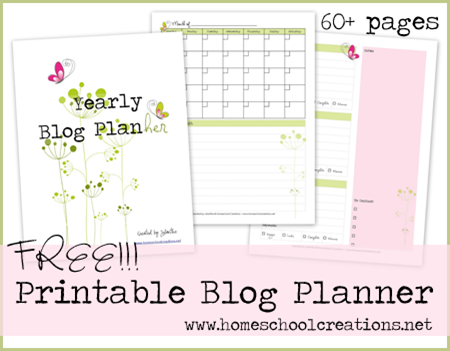
Over the last year I’ve been working on a layout for a blog planner. In the meantime, I actually hijacked a planner that I had on hand {because I hated to waste it}, put sticky notes all over the place and meanwhile tweaked the layout until it was just like I wanted it.

This last week I finally put the finishing touches on my new blog planner printables after I found a neat 3 ring notebook and a piece of clip art that was just begging to be used. I didn’t have any more excuses. Well, that and my current planner ended June 30th…{grins}.

Would you like a peek inside my blog planner?
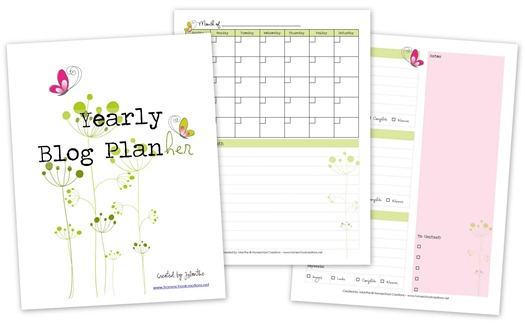
Printable Blog Planner

To make a blog planner similar to mine you will need the following supplies:
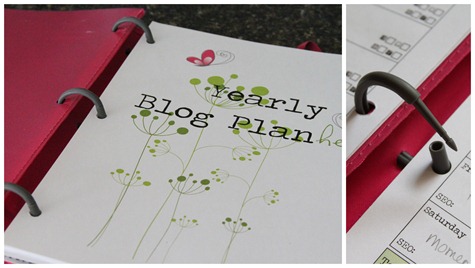
BlogPlannerCollage

I use a Mead flexible binder that is a cross between a 3 ring binder and a plastic covered composition notebook. The binder gives me plenty of room to expand and can also use pockets and dividers that fit in a typical 3 ring binder.

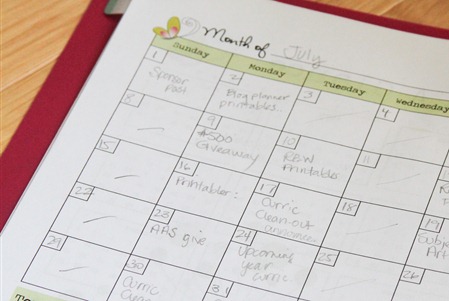
The planner is set up to print front/back and is not dated, so you can use it from year to year. Each month there is a month-at-a-glance calendar with room underneath to note the most important things to do.
Blog Planner photos-1-3

I use monthly calendar to give me a quick snapshot overview and see if there are things I need to move or add in. The facing page has room to track giveaways and/or reviews. I like having all of the company info in one spot {contact info, important links, due dates, etc…} along with space to check off when it is completed. I typically try not to schedule more than 2 reviews or giveaways in a month, but have room for three…just in case!
Blog Planner photos-3

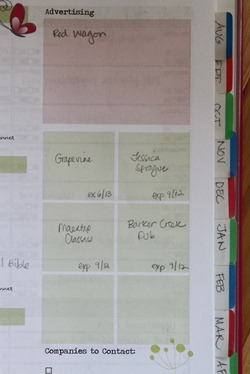
There is also additional space to jot down extra notes {Note: I custom divided this area in mine to keep track of any sponsors/advertisers that I have for the month}. Along the sides of the planner, I use Avery Write-on Tabs to label the months in the planner, so I can quickly flip to those months if needed.
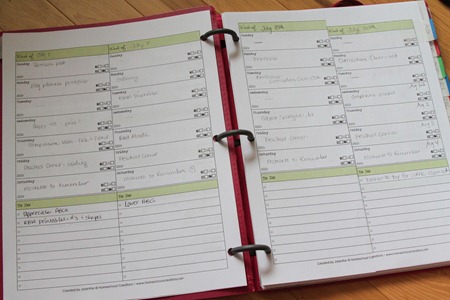
Weekly Blog Planner Layout-1

Having the weeks at a glance is also really helpful to me, so I have two pages that lay flat and give me space to track posts and see them laid out weekly. Each post area also has social media reminders for me to check off {Facebook, Twitter, Pinterest, and Google+}. Sometimes my brain just needs a few added reminders!
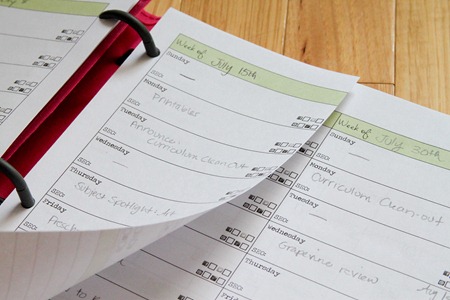
Blog Planner photos-1-2

There are a few months that need more than 4 weeks of layouts, and for those weeks, I printed a few extra sheets of the weekly layouts, cut them in half, 3 hole-punched them and added them into those months that needed them.
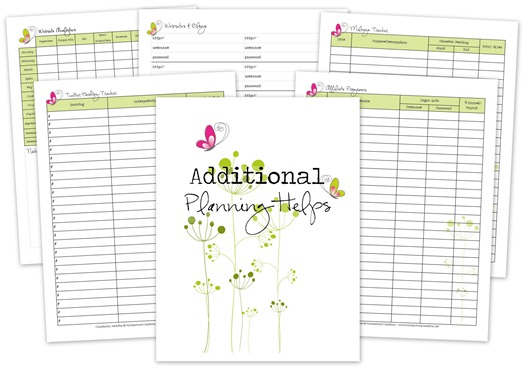
Blog Planner Extras

Toward the back of the blog planner there are planning pages to help you with any additional details you may want to track {and maybe even a few you hadn’t thought of yet!}.

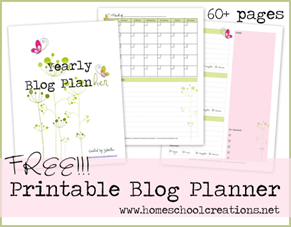
Overall, this 60 page blog planner includes:

  • 12 month-at-a-glance pages with a monthly focus list
  • room to track reviews and giveaways
  • space to jot notes and ideas
  • weekly post trackers, including social media reminders
  • monthly website analytics tracker: RSS, Facebook, Twitter, etc…
  • a place to keep track of affiliate program info
  • a Twitter hashtag tracker {because there are lots!}
  • weekly blog meme tracker
  • mileage sheet {who thought blogging might involve driving?}
  • website username & password sheet {I can’t remember them all!}
  • and room to jot down all those wonderful post ideas
Blog Planner

Ready to get started printing your own blog planner?

Download the printable Blog Planner here!

Need more planning and organization help?
Homeschool Planner

Check out these additional organizational printables:

~ Daily To-do List printable

~ Main Dish Menu Planner

~ Editable Monthly Menu Planner

~ Weekly Homeschool Planner

Like what you see? Add Homeschool Creations to your feed reader for the latest updates. 

Jolanthe Signature affiliate button


This post may contain affiliate or advertiser links. Read my full disclosure policy here.

Tired of Being Anonymous?

This post may contain affiliate or advertiser links. Read my full disclosure policy here.

Several many of you like to enter giveaways or ask questions…but I can’t get ahold of you to reply to your comment. There are several of you who have actually won a giveaway that I’ve held, but because you didn’t leave a comment, someone else won some lovely prizes.

Sad, but true.

You do not need to have a blog in order to have a blogger profile. Your profile can include two simple things ~ your first name and an email address.

If you have either a Gmail or hotmail email account, the set up is SUPER easy and quick {and if you don’t have a Gmail account, it is really easy to create one of those too!}. Go to the Blogger home page {blogger.com} and log in using your Gmail/hotmail email address and password. You will see a page that looks like this:

image

Click on the Edit Profile link and look for the part of the Profile page that says ‘Email Address’. You can change this email address to ANY email address that you would like to ~ meaning the one that you use on a daily basis {yahoo, aol, etc…}.

image 

Scroll up the page just a little bit and make sure that these two boxes are checked {the ‘share my profile’ and ‘show my email address’}.

image 

SAVE your changes!!

This is how your profile will look to others when they click on your name if you leave a comment on their blog.

image 

Now, whenever you leave a comment asking a question, your email address will be directly linked to that comment for only the blog owner to see so they can quickly reply to you!

On a side note, I have tried installing Disqus on my blog in the past, but had some major issues and got a little burned out trying to get it figured out. I love the ‘interactive’ feature that it allows in the comments and really hope that someday I can get it working..but that’s a project for another day!

Jolanthe Signature affiliate button

This post may contain affiliate or advertiser links. Read my full disclosure policy here.

Blogging Tips: Search This Blog

This post may contain affiliate or advertiser links. Read my full disclosure policy here.

A few months ago I added a little something to my sidebar and it has been a HUGE help to me personally.

The search box. See it over there on the side?

image

If you are looking for something in particular, try typing in a keyword for what you need and see what you come up with. I have the search set to look on this blog and links that I have on the blog.

I’ve found more things that I forgot that I posted about, and it’s been a quick way for me to find posts rather than digging through my categories tag or even the archives.

Have fun looking ~ and hope you find lots of useful things! Let me know if you find anything really exciting. :)

Jolanthe Signature affiliate button

This post may contain affiliate or advertiser links. Read my full disclosure policy here.

Blogger Widget Title ~ Making It Blank

This post may contain affiliate or advertiser links. Read my full disclosure policy here.

There’s a glitch in Blogger lately. If you edit or add an html widget {or any widget}, it’s requiring you to add a title.

Which really messes with my sidebar and how I want it to look.

BUT there is a quick {and easy} work-around if you happen to need one! In the title area type in this coding and it will allow you to save the widget and no wording will appear in the title area and mess up your pretty sidebars.

Ready?

<h2></h2>

It’s that simple! You’ll have to re-enter it whenever you edit your widget, but it’s a quick and simple way to fix it without pulling any more of your hair out. :)

Jolanthe Signature affiliate button

This post may contain affiliate or advertiser links. Read my full disclosure policy here.